Everything it can do, and the bits most people miss.
From planning your day out loud to the party at the end of it. Jump to any part, or scroll and find something new.
Say your day. Get a plan.
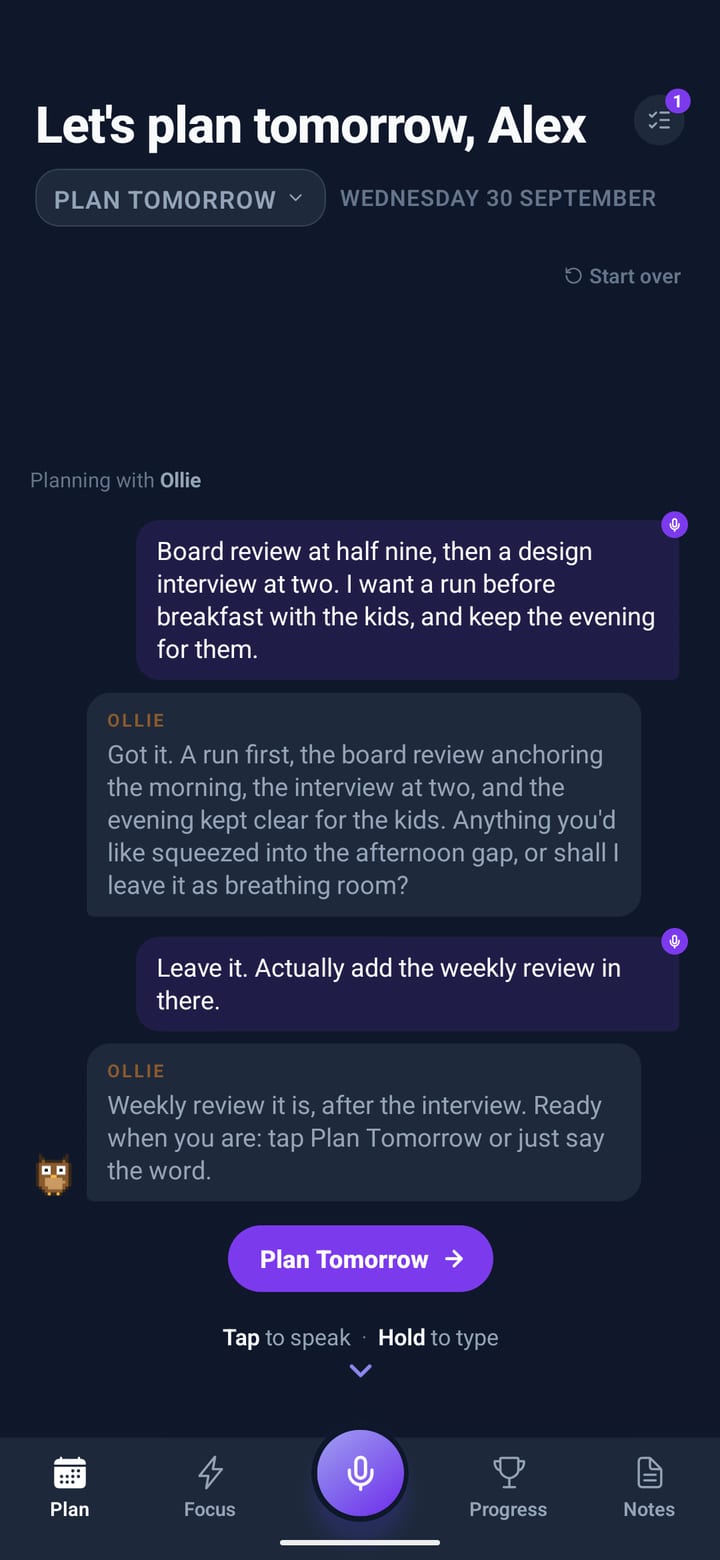
Tap the mic and talk the way you’d tell a friend. Your companion checks what it heard, then turns it into a day with times, fitted round your calendar.
- Talk, or type
- Tap the big mic in the middle of the tab bar and say everything on your mind, up to about three minutes. Somewhere quiet? Hold the mic for half a second and type instead.
- Ticked means planned
- Under your companion’s reply sits one list: what you said, your repeats, your calendar and anything left from yesterday. Ticked goes in. Untick something and it waits on your Horizon instead.
- See it before you start
- Say “show me the plan” to look at it, close it, say what to change, then “show me again”. When it’s right, tap Start My Day and the reminders are set.
- Plan tomorrow tonight
- Switch Plan to Tomorrow, or just say “…tomorrow”, and talk it through before bed. It starts itself in the morning, and its reminders fire even if you never open the app.
- Round your calendar
- Settings, Calendar, “Plan around my calendar”. Events keep their exact times, and the app never writes to your calendar. If a time you say lands on one, your companion asks before it builds.
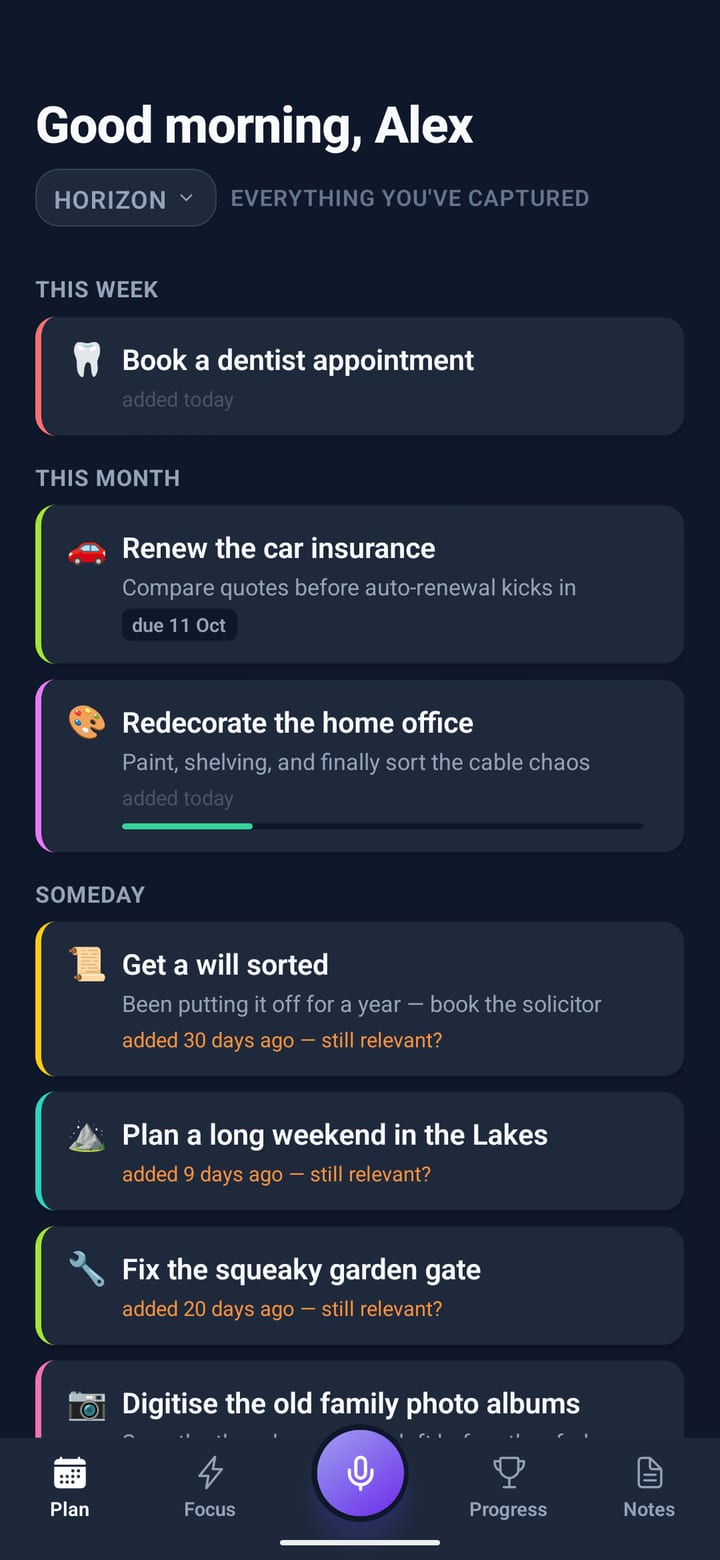
- The Horizon
- Everything that isn’t today lives here: deadlines, someday jobs, things you unticked. Extras that fit are offered as “Room for more”, and anything unfinished moves here overnight.
One big goal. One small step at a time.
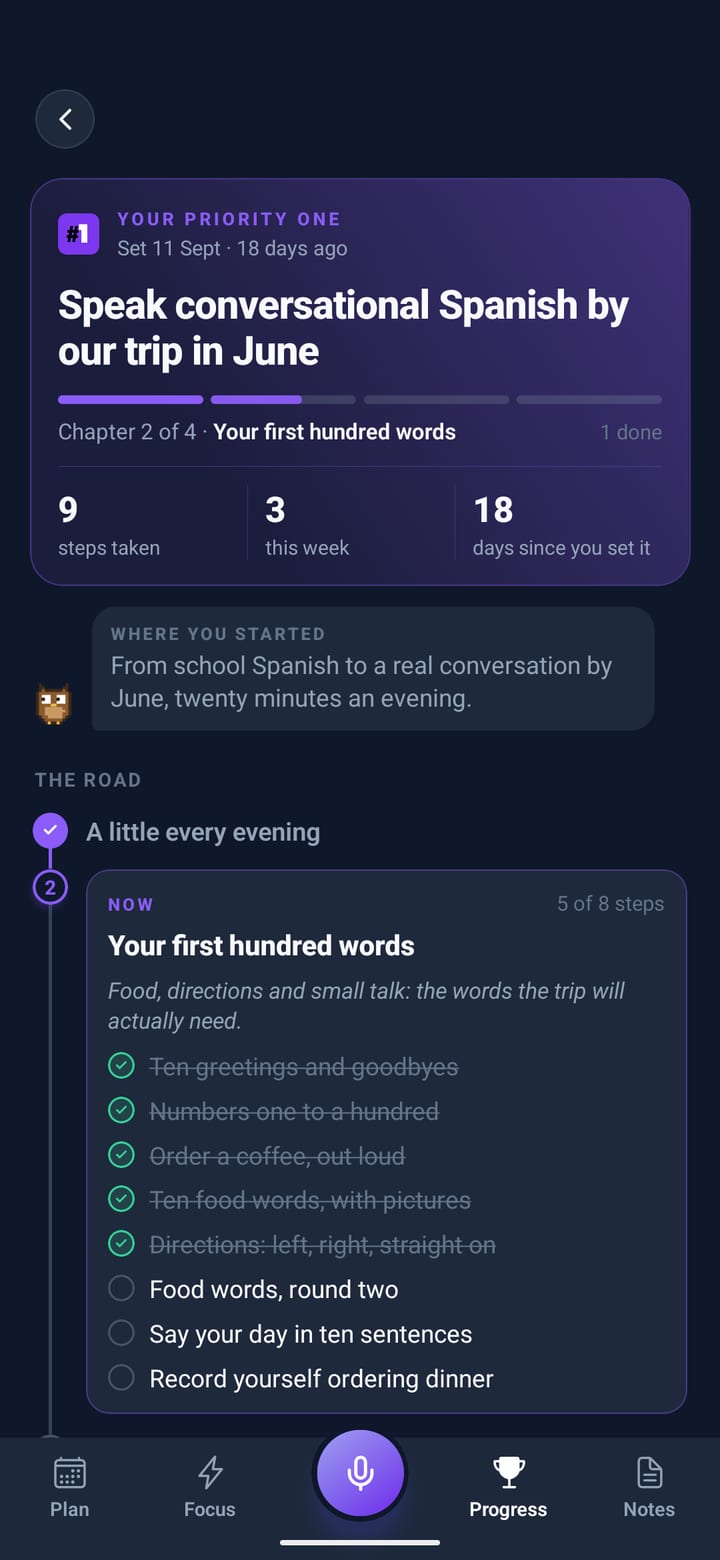
Name the thing you keep meaning to get to. Your companion draws it as a road in chapters, shows you the chapter you’re in, and offers one small step whenever you plan.
- A step when you plan
- The planning chat offers one step under “Toward your priority one”. It’s an offer: say yes and it joins your day with the #1 badge; say “not today” and it waits.
- Tick it, see the road move
- Done on a goal block opens your road: your companion walks to the step and ticks it off, a finished chapter gets its stamp, and you’re back in your day.
- The evening asks how it went
- Say it in your own words. If it isn’t working, your companion suggests a change, such as other hours, a gentler pace or a smaller step, and only makes it if you say yes.
- Only when it fits
- Tell it when steps can happen: before work, lunchtime, evenings or weekends. A step never lands in the wrong hours.
- Your pace
- Gentle, Steady or Brisk sets how often a step comes and how long it can be.
- Already done, or too big
- Done it already? Say so and the next step comes. Too big? Say “break it down” and you get a smaller one.
- Life moved on
- “Things have changed?” on the goal screen lets you say where you’ve got to, and the road is redrawn from there.
- Pause it, or keep three
- Pause a goal and it waits exactly where it was. Keep up to three goals and switch between them.
When the day changes, just say so.
Running late, a meeting moved, something new came up. Tell the mic on your plan and the rest of the day moves round it.
- Say what changed
- “Move the dentist to three”, “push everything back an hour”, “remind me to call Sam”. Anything with something to do in it becomes a block or a Horizon item.
- Fixed things stay put
- Meetings, appointments and calendar events only move when you name them. Nothing is quietly dropped: anything squeezed out goes to the Horizon.
- Okay or Undo, every time
- Each change arrives on a card from your companion. Okay keeps it. Undo puts the plan, its reminders and anything it saved back exactly as they were.
- A moment to change your mind
- Spoken changes count down for a few seconds before anything happens. Tap Change on the pill to send the words somewhere else. Choose 3, 5 or 10 seconds in Settings, Voice capture.
- Swipe it
- On your plan, swipe a block right for Done, or left to send it to the Horizon. Nothing is ever deleted that way.
- Several at once, or a new order
- Long-press a block, tap others, then Done or Horizon for the lot. Reorder lets you drag them into the order you want, and your companion re-times the day round the fixed things.
One thing at a time.
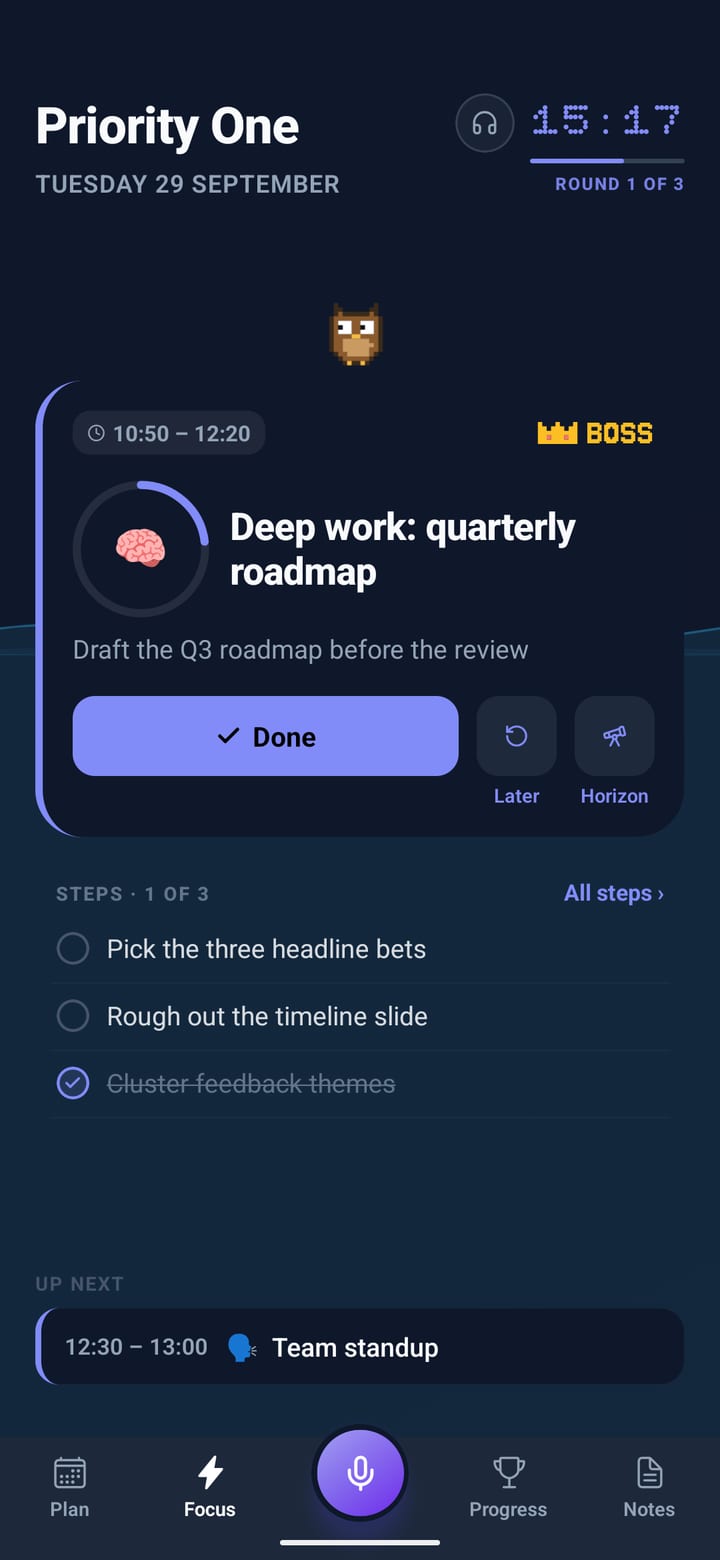
Focus shows the block you’re on and nothing else, with your companion keeping you company above it.
- Done, Later or Horizon
- Tap Done when it’s finished, or swipe right. Later offers to swap it with another task, find it a free slot, or rework the rest of the day.
- Break it down
- Tap the mic on Focus and talk about the task. It gains detail and a list of steps you can tick off.
- A timer that fits
- Tap the clock: match the block, a Pomodoro (25 and 5, or 50 and 10), a countdown, or count up. The card fills like water as it runs, with a chime at ten minutes, five and one.
- Something to work to
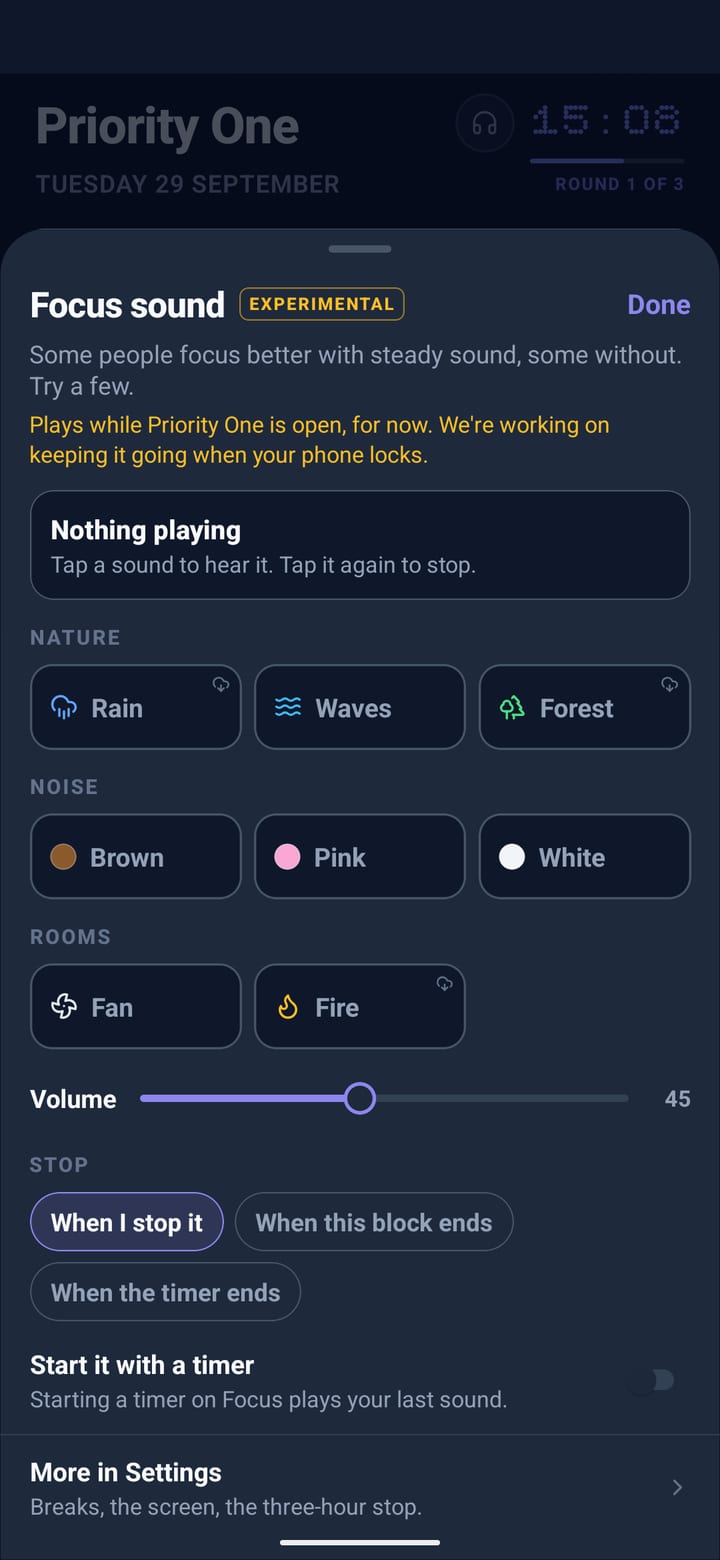
- Tap the headphones for rain, waves, a forest, a crackling fire, a fan or steady noise. It pauses while you talk to the mic.
- Free time
- Between blocks, Focus shows how long you have and offers three ways to use it: bring the next block forward, start another, or pick something from the Horizon.
- A party when it’s all done
- Finish everything on today’s plan and your companions throw a party, with hats, pixel fireworks and gossip about your week.
Habits that fit the week.
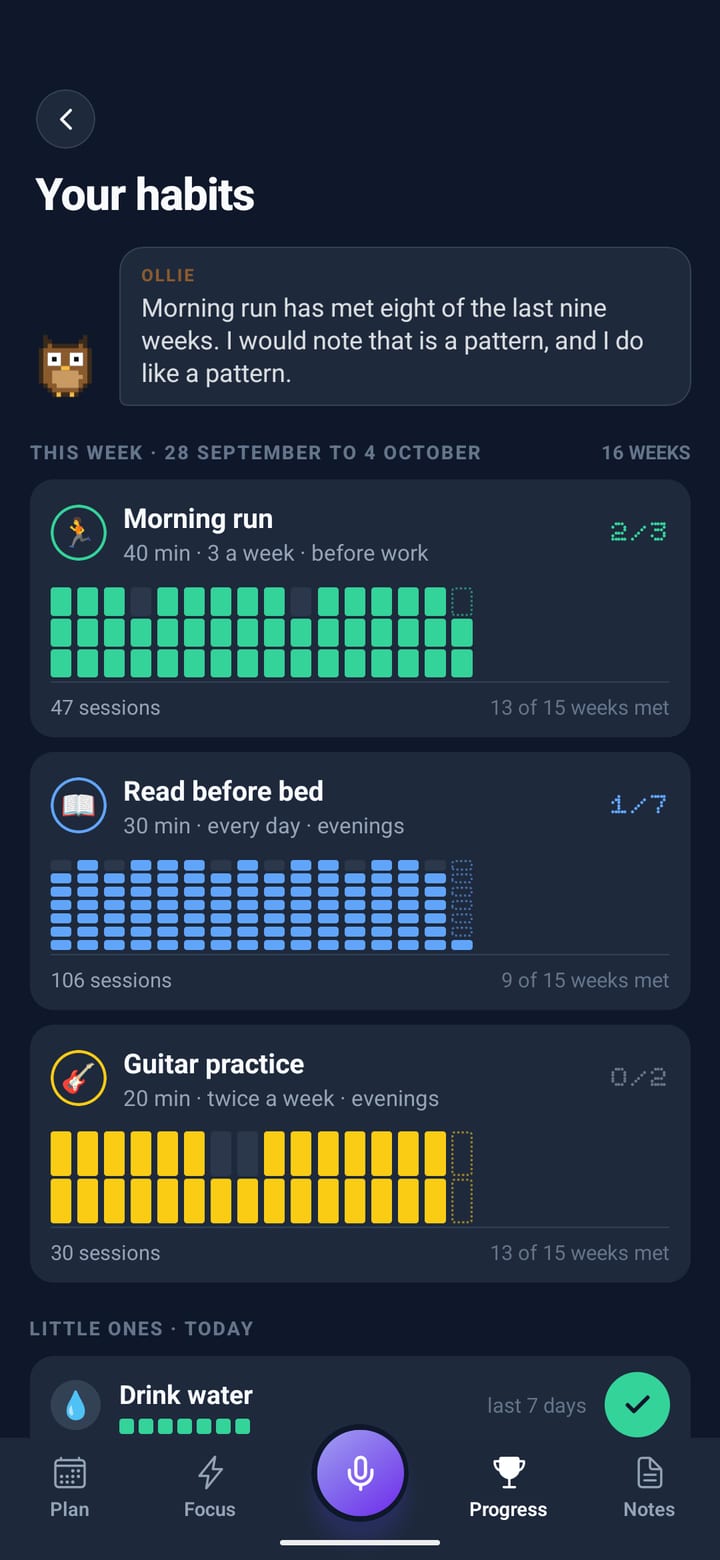
Say “run three times a week” or “read every evening” from any screen. Habits count by the week, however the days fall, never as a streak you can break.
- Say it how you’d say it
- Several in one breath works: “run three times a week, the gym on Mondays and water every day”. Each one is made at once.
- A real slot in your day
- Planned habits get their own block, in the hours they fit: before work, lunchtime or evenings.
- Little ones, one tap
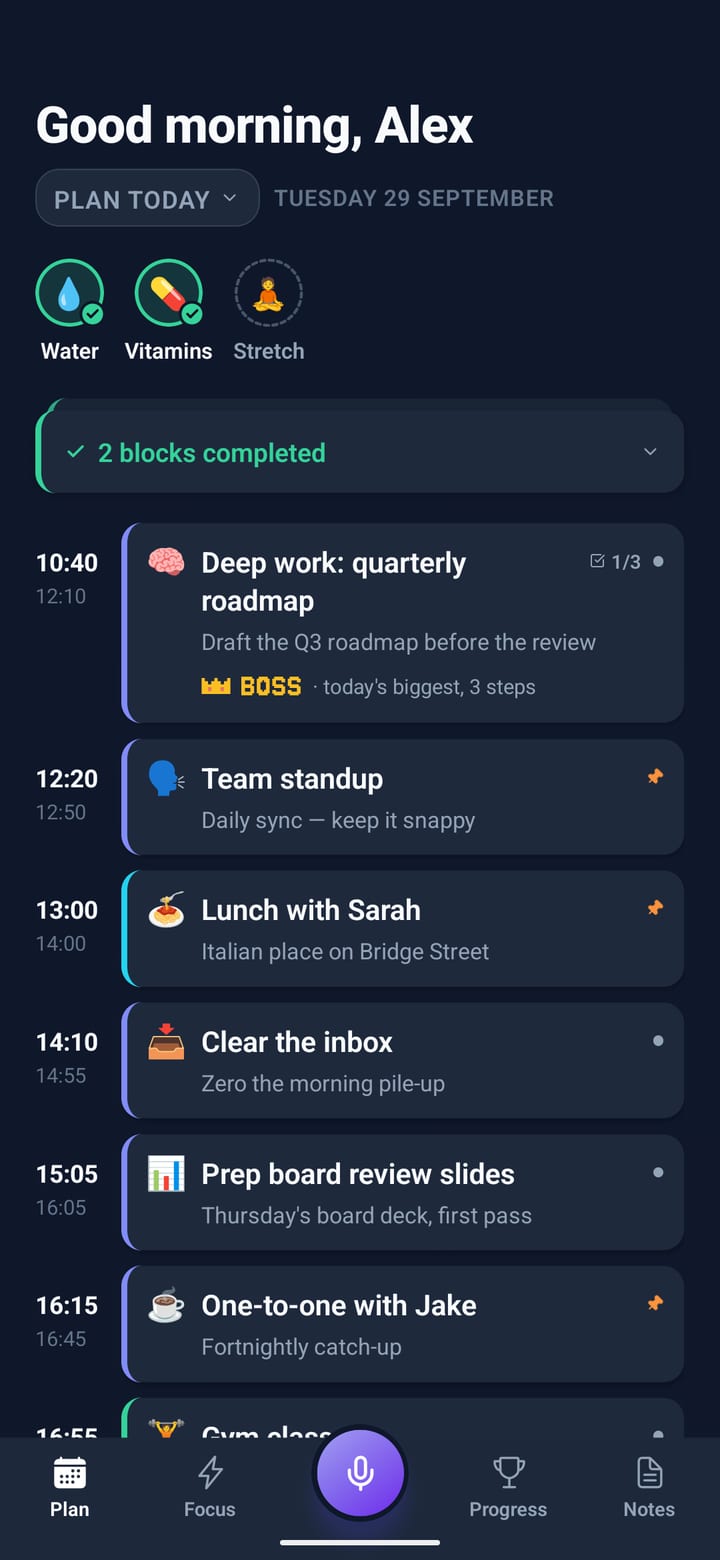
- Vitamins, water, ten minutes outside: round buttons at the top of today’s plan, ticked whenever.
- Count the distance
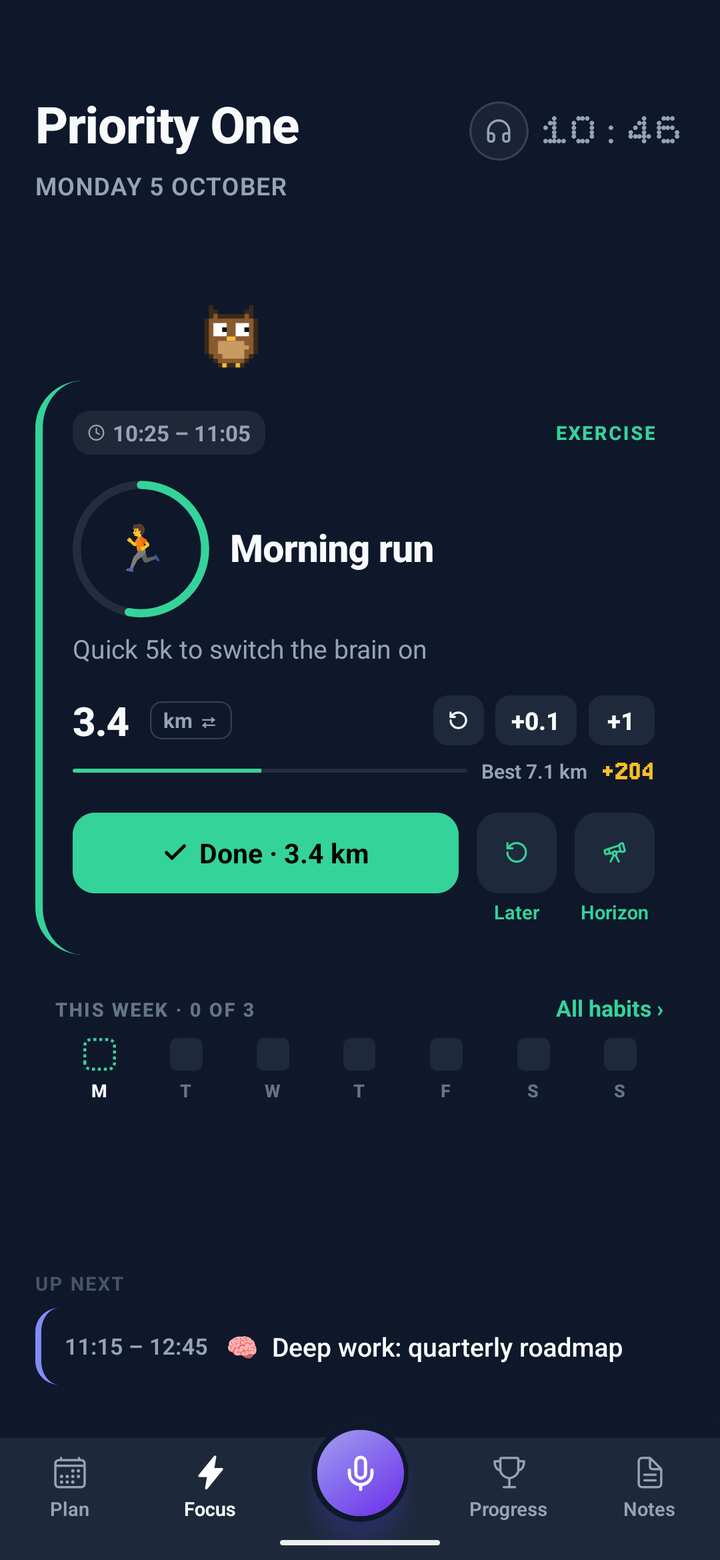
- Runs, walks, swims and rides count kilometres, miles or minutes, with your best and your totals. Press-ups and squats count reps.
- Gentle when it slips
- A habit that hasn’t found a slot for two weeks gets one quiet question in the evening: smaller for a while?
A short talk, then a page in your journal.
When the day is done, your companion asks how it went, briefly, and keeps your words.
- That’s the day
- The wrap-up tallies what you did, then your companion takes over for three or four short questions. Goodnight ends it.
- In your own words
- Say how your goal step went. If something isn’t working, your companion suggests a change and only makes it if you say yes.
- How it felt
- Five faces, from rough to great, at the end of the day.
- Your journal
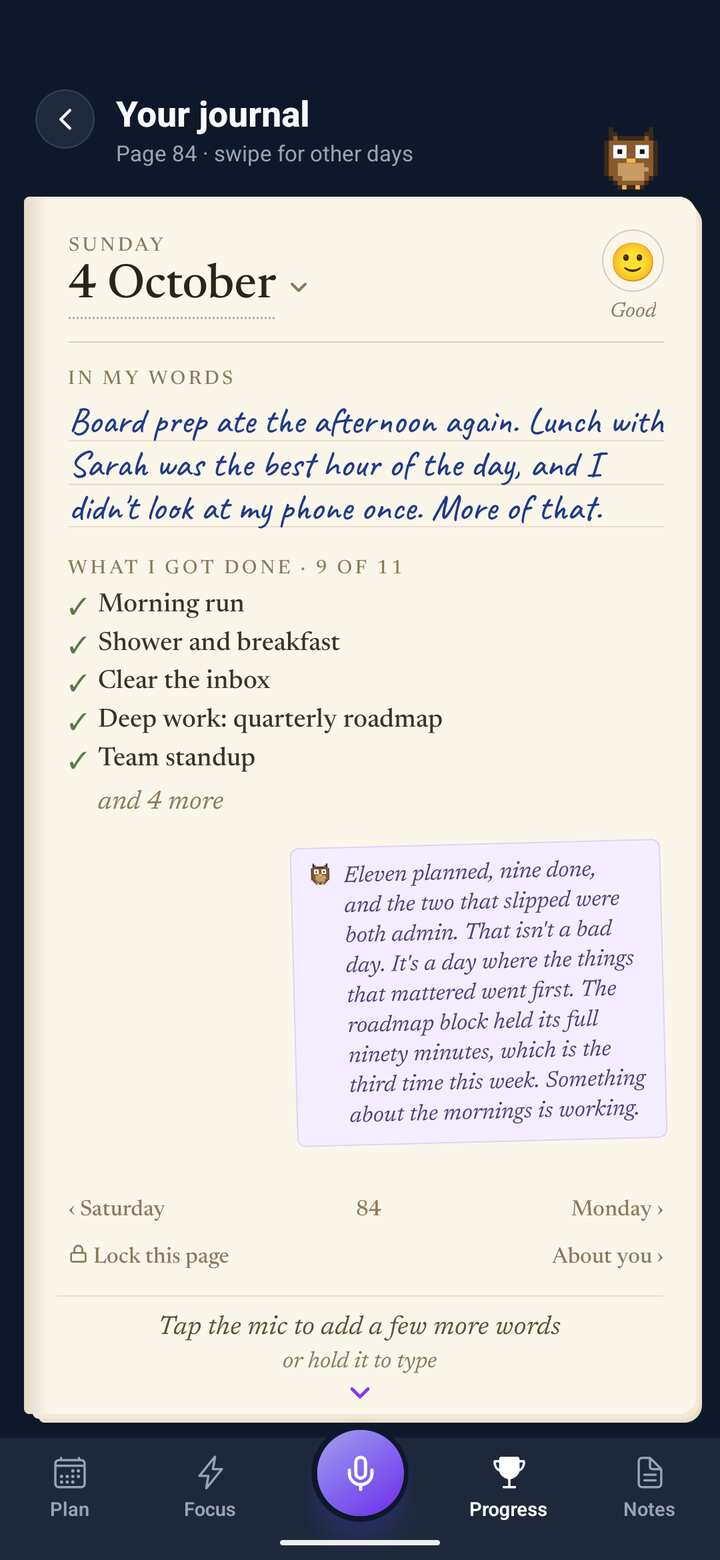
- The evening ends with a page for your journal. Progress, Your journal opens the book: swipe back through the days, search your words, or tap the mic to add more.
- Private when you want
- “Lock this page” keeps a page from your companion and from the cloud backup.
- Finish early
- Done before the plan is? “Finish the day early” moves what’s left to the Horizon and offers it back in the morning.
Notes on paper. Lists you can tick.
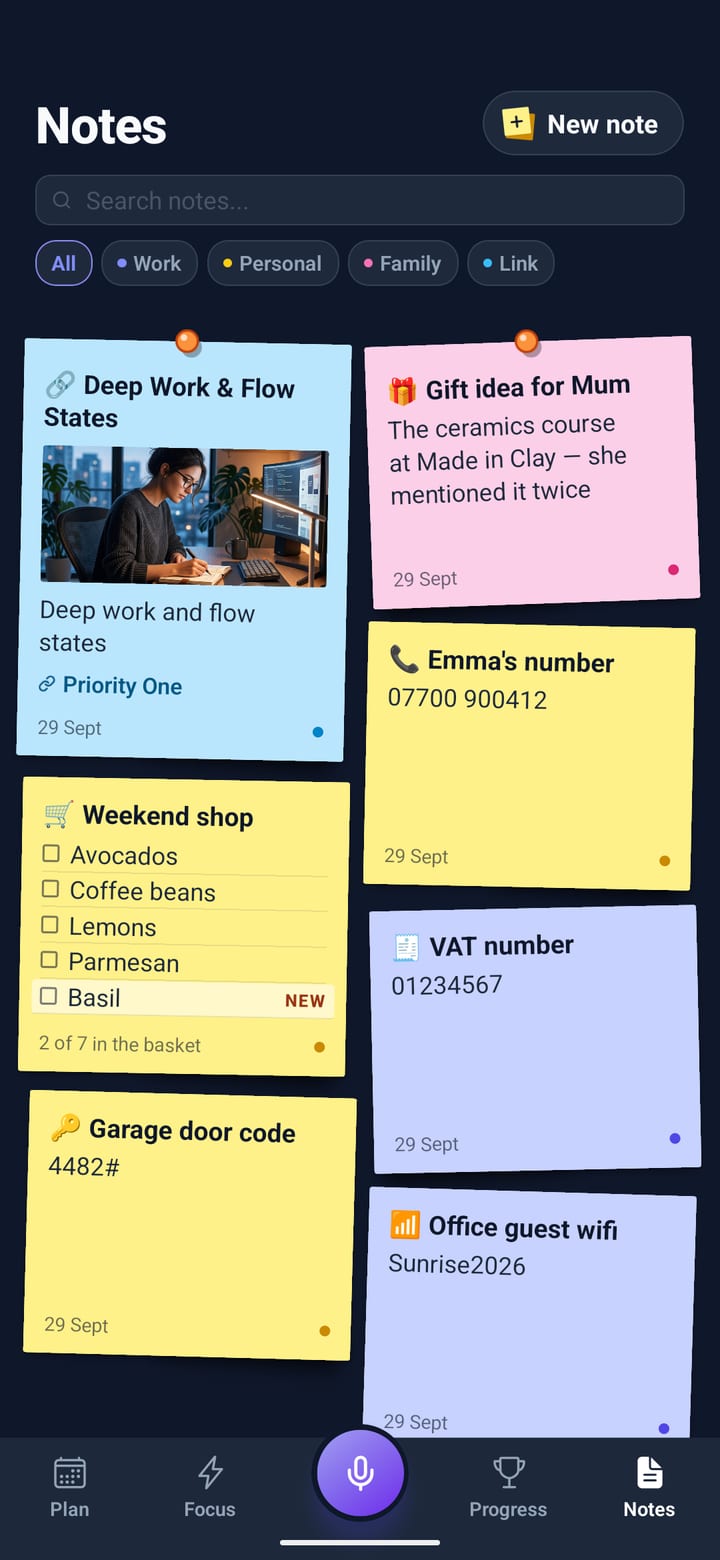
Say a note and it lands on the board as a sticky note in its colour. Say a list and it becomes one you can tick off.
- Note it from anywhere
- On Notes, tap the mic. Anywhere else, start with “note…”. Or tap New note and write one by hand.
- Lists that tick
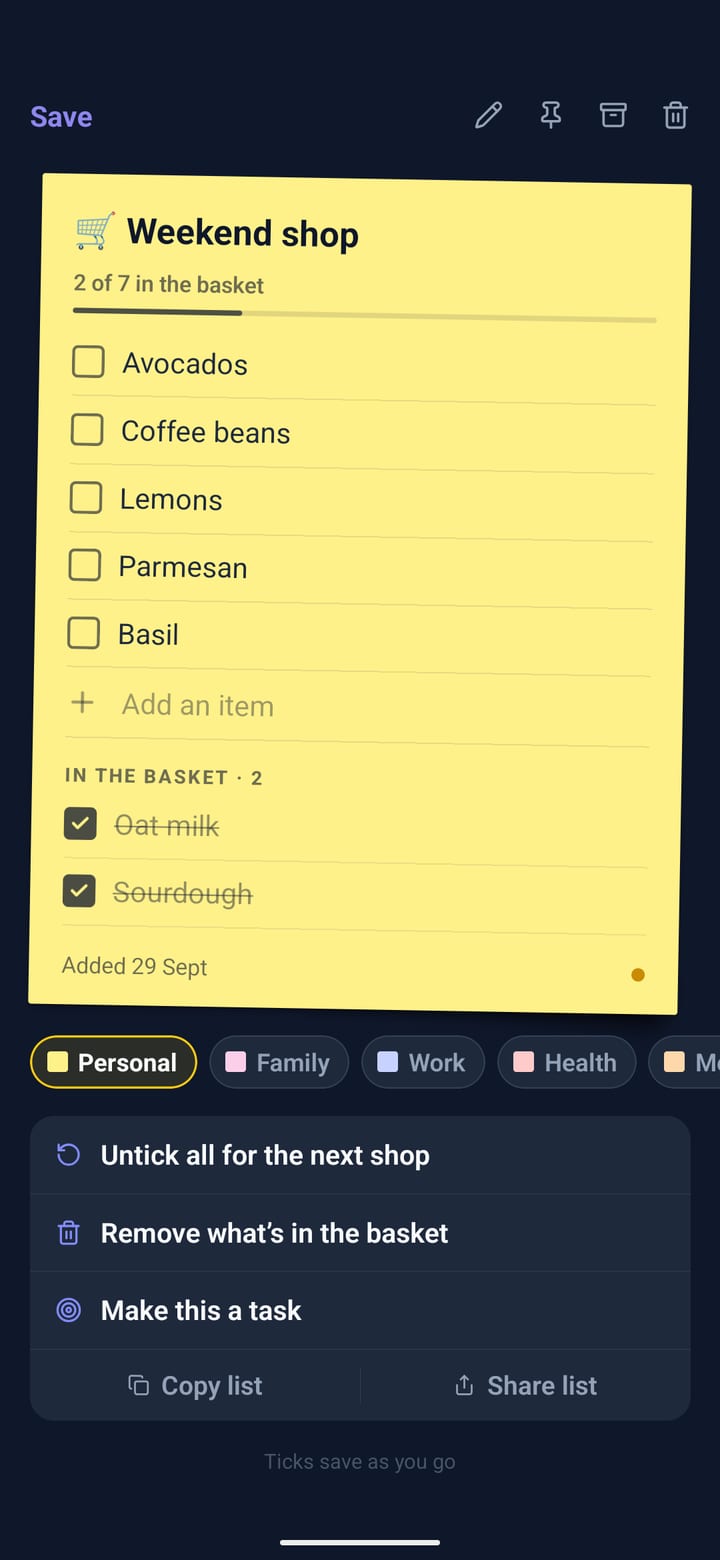
- Say a shopping or packing list. Tap things off as you go, and “Untick all for the next shop” keeps it ready for next time.
- Add to a list from any screen
- “Add tea bags to the shopping list” goes straight into the list you already have.
- Numbers that do something
- A phone number in a note gets buttons to call it or add it to your contacts.
- Share a list live
- Send a list as a link. People can tick things off, and add to it if you let them, with no app needed. Their ticks come back to your phone.
- Nothing lost
- Swiping a note only archives it, and search finds archived notes too.
Points for getting things done.
Optional, and only ever against your own best. Playful shows it all. Calm keeps it to a tick and a quiet word.
- How it scores
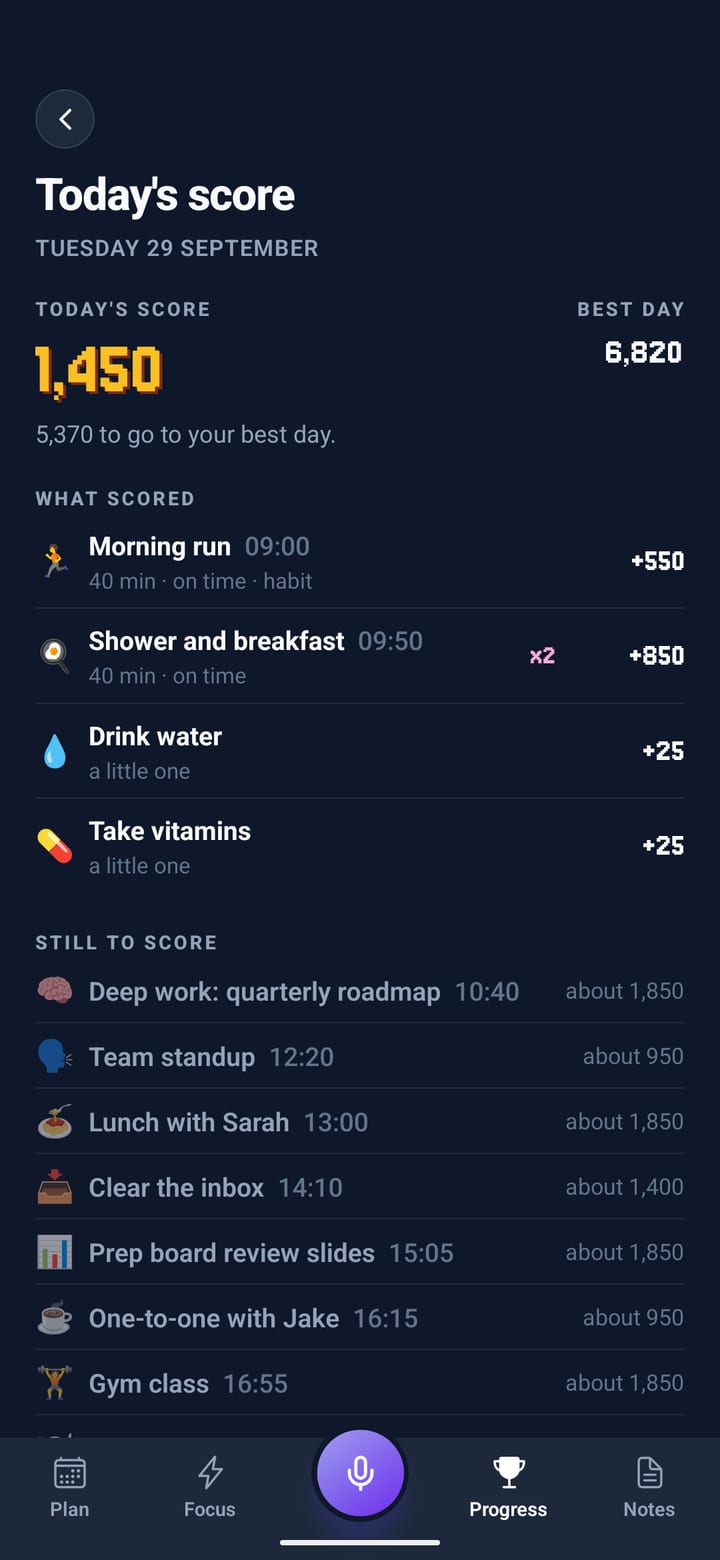
- Every Done scores for the time it took, more if it’s in its slot or a habit, and runs of Dones multiply. Later, Skip and Horizon never cost a point.
- The boss
- The biggest job of the day wears a crown. Tick its steps to land hits, then Done for the knockout.
- Stage Clear
- Finish the plan and the day is tallied, with a new high score when you beat your best.
- Levels and unlocks
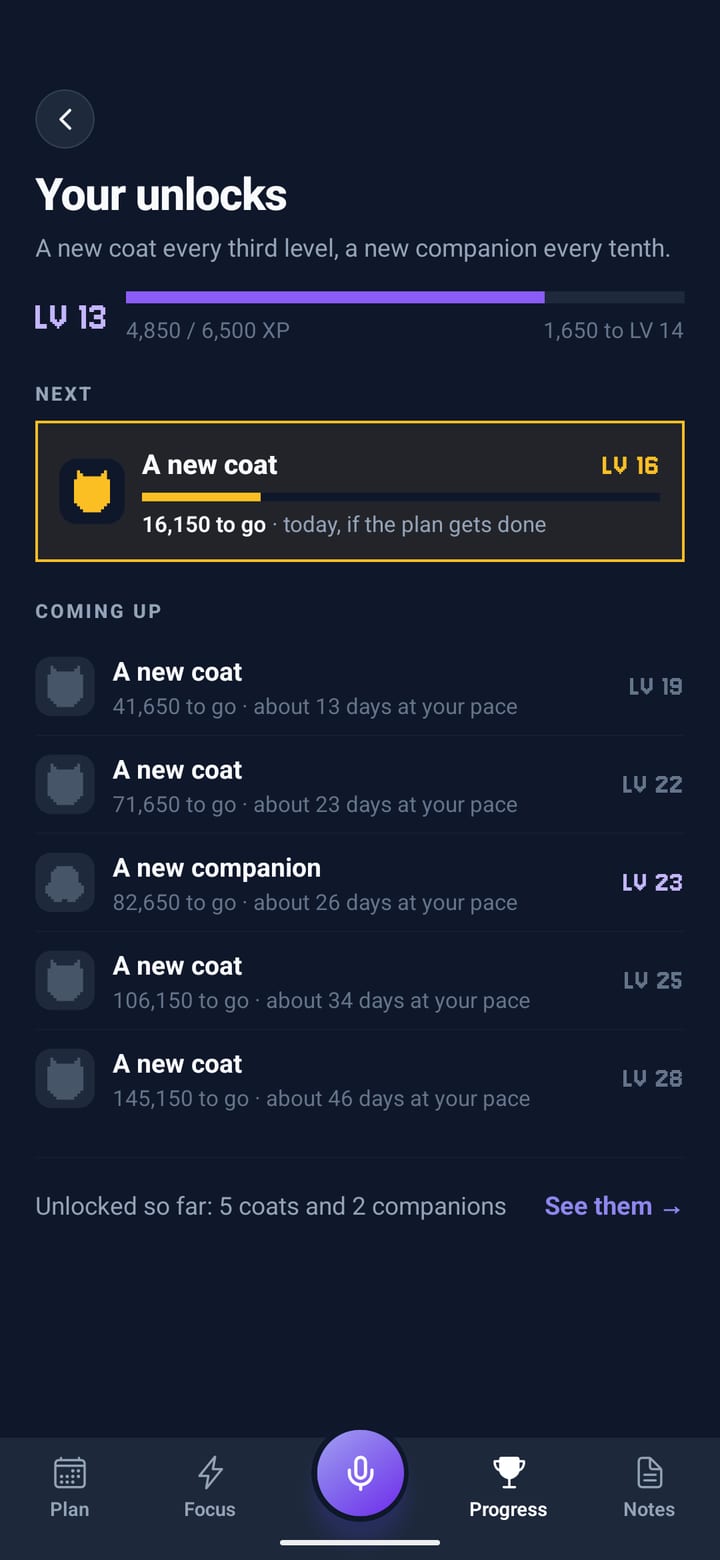
- Levels bring new coats for your companion and, every so often, a new companion. Progress shows what’s next and roughly when.
- Not a game person?
- Settings, Game mode, Calm. Levels still grow quietly in the background.
Pick one. Name it. It comes with you.
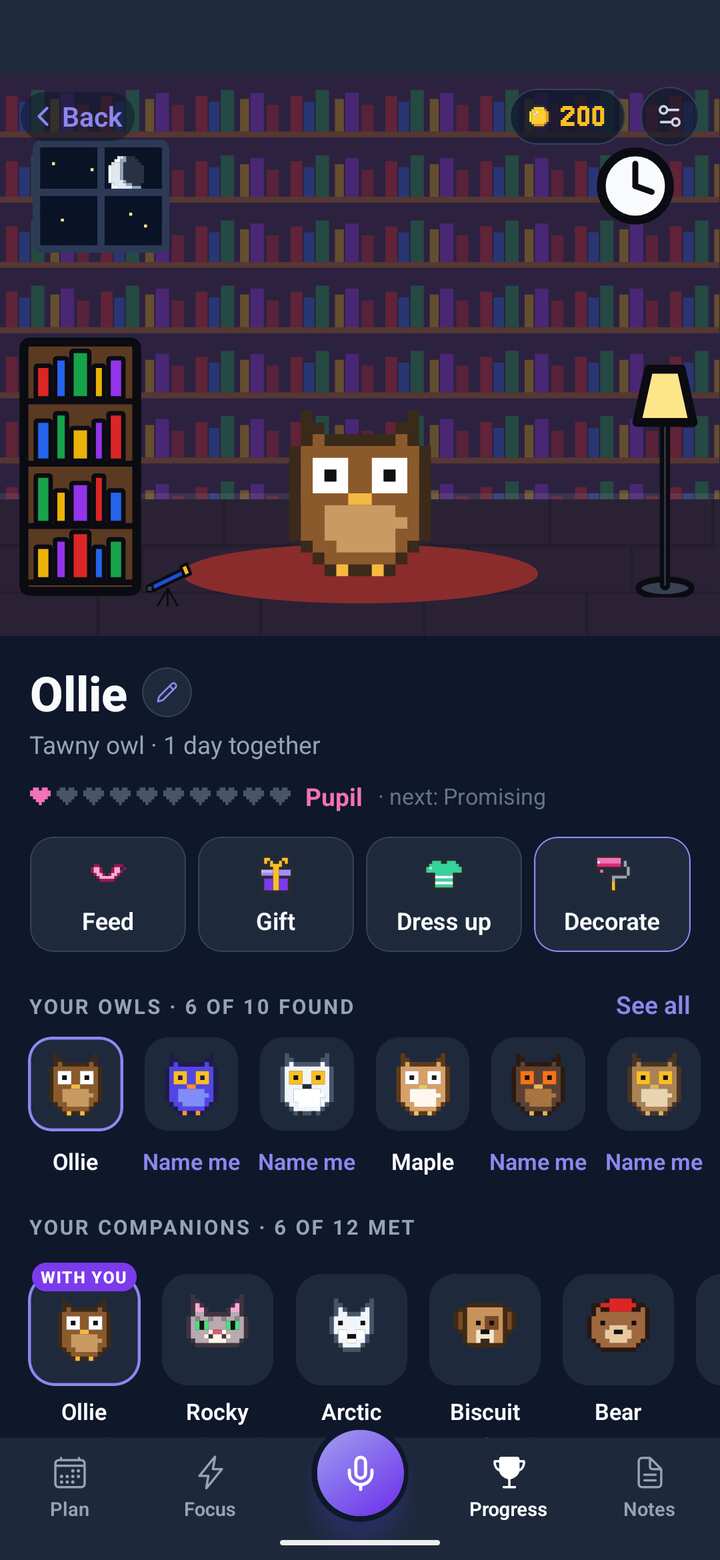
A small pixel companion plans with you, keeps you company on Focus and talks in its own voice.
- Twelve characters
- Owl, Cat, Dog and Fox to start; Bear, Robot, Little bird, Frog, Ghost, Penguin, Raccoon and the Troll to earn. Prefer something plainer? Choose the Coach.
- Its own voice
- The owl is a pompous professor, the cat hard to impress, the dog thrilled by everything. Same facts, different manner.
- A room of its own
- Tap your companion on Progress, or long-press it on Focus. Feed it, give it gifts, dress it up and decorate its room.
- A wallet
- Bank the day’s points as coins before midnight, then spend them on treats, things to wear and the room.
- The weekly race
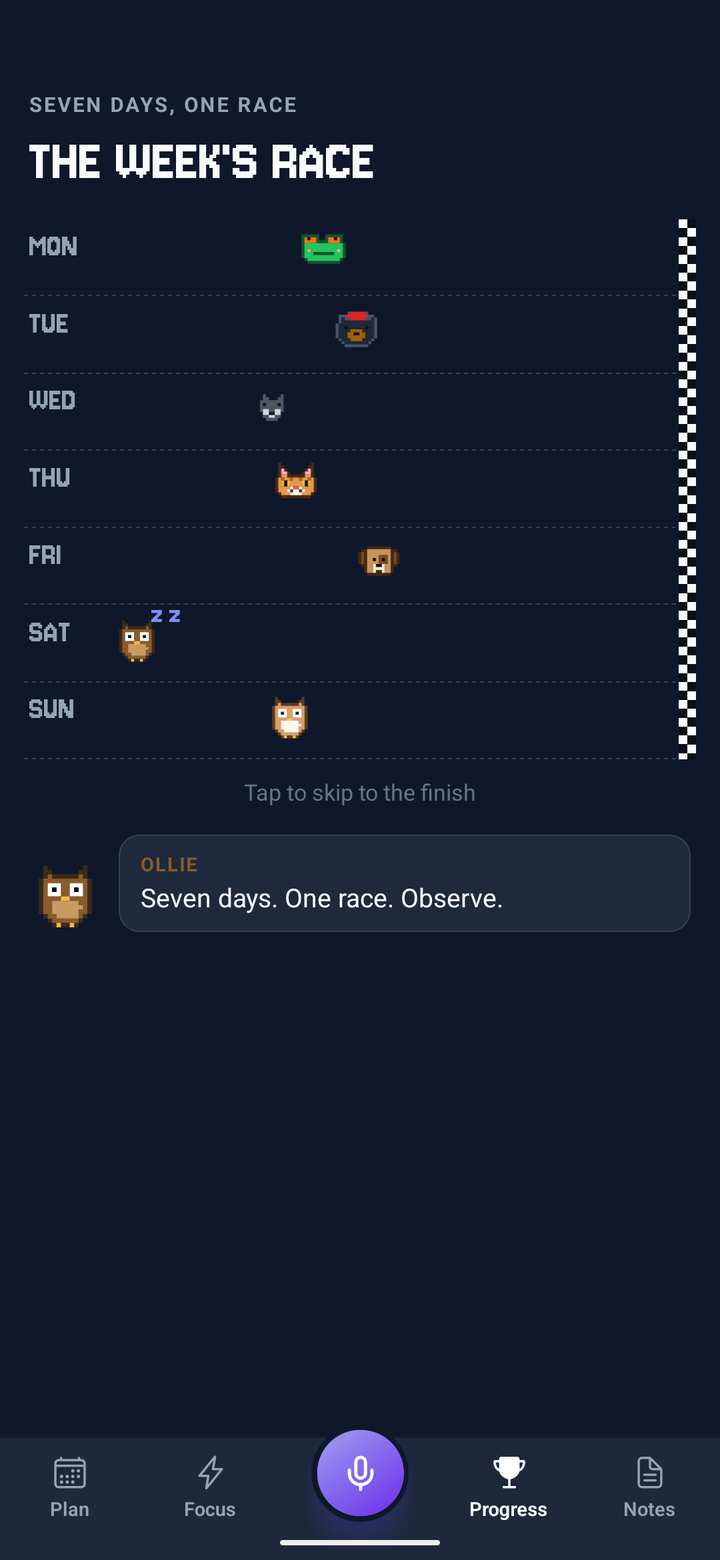
- In Playful, your seven days race each other, each one run by one of your companions.
- How it nudges you
- Settings, Notifications, Encouragement: Gentle, Straight or Fierce. Never guilt.
See how far you’ve come.
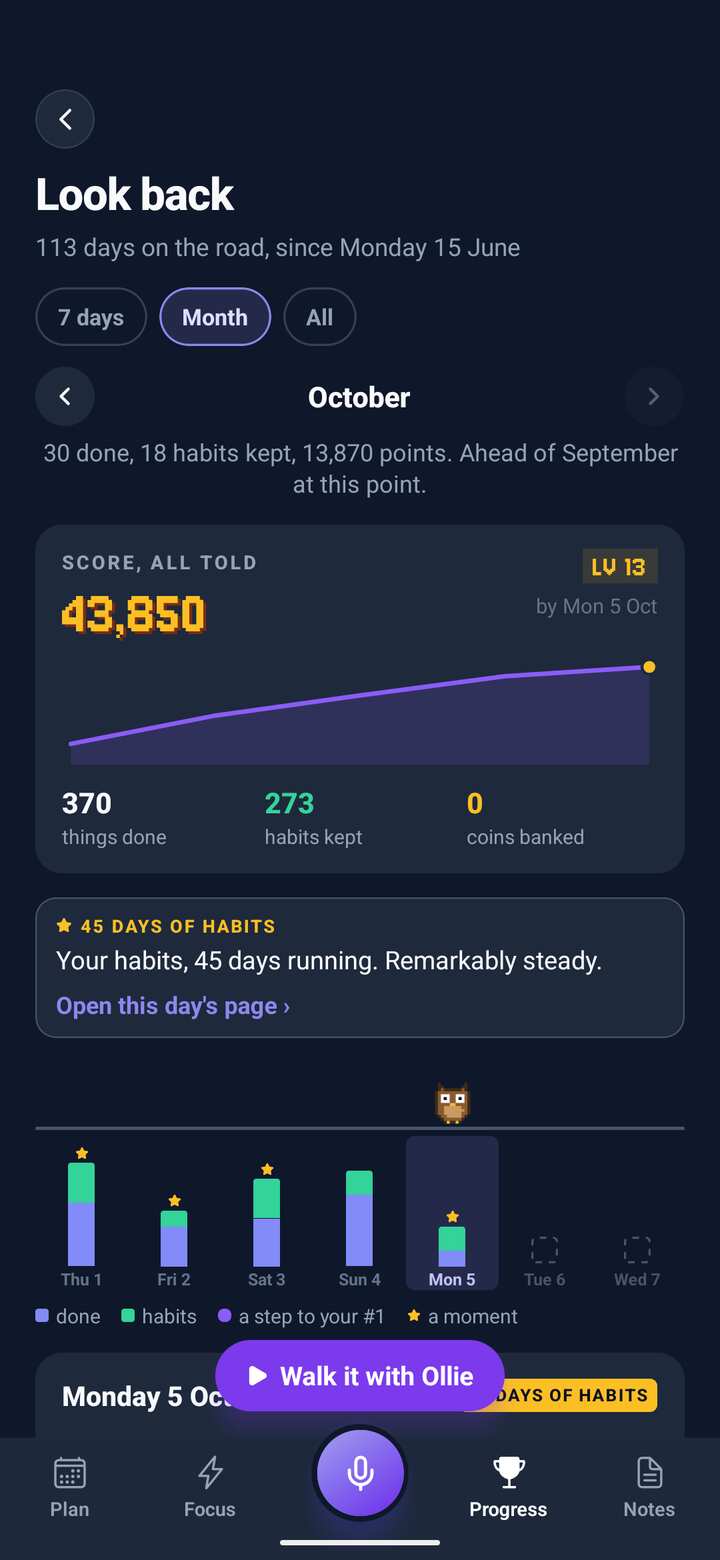
Every day you plan adds to the story. Look back walks you through the best of it.
- Week, month or all
- On Progress, tap the score line at the top. Tap any day to see it, or a starred one to replay its celebration.
- Walk it
- Tap “Walk it” and your companion runs through your strongest moments in about twenty seconds.
- Watch it back
- On the wrap-up, “Watch it back” plays the day in ten seconds, morning to night, made for your phone’s screen recorder.
- Share your day
- Send a day or a week as a link: the page plays it block by block, and only shows what you ticked off if you choose.
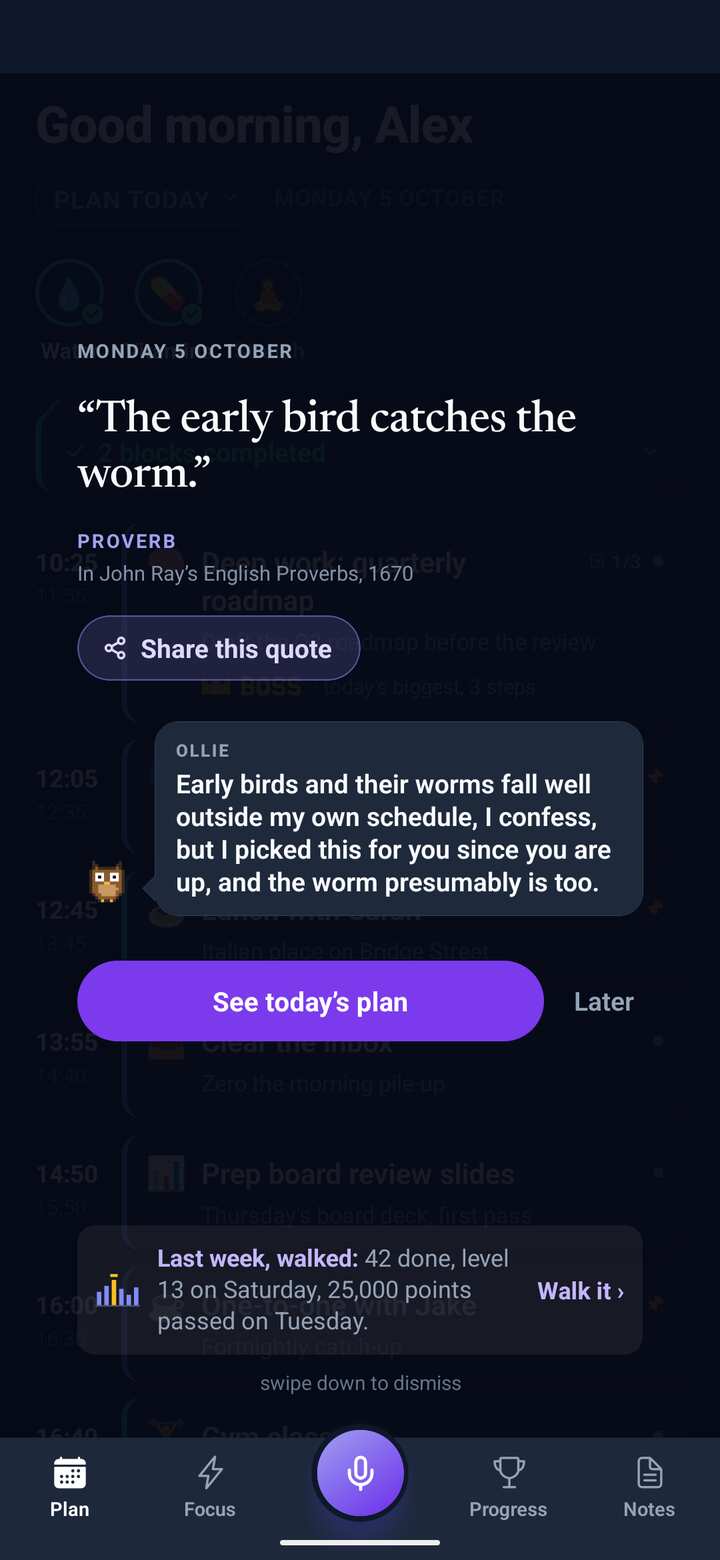
- A thought each morning
- The first open of the day brings a well-known quote with a line from your companion, and you can share it.
Set it up your way.
A few settings worth knowing about. Settings is the gear at the top of Progress.
- Reminders and quiet hours
- Settings, Notifications: reminders for fixed and flexible blocks, your companion’s morning and evening times, and quiet hours.
- Repeats
- Open any block and set it to repeat on chosen days, or manage them all in Settings, Recurring Blocks.
- Back up
- Settings, Account, Back up to cloud, and restore on a new phone.
- Your Inbox
- The bell on Progress holds updates, each with Show me to take you there, and notes from the founder.
- Tips again
- Settings, Learn, Show tips again brings back the first-time tips.
Ready when you are.
Already have it? Open the app and tap the mic.